
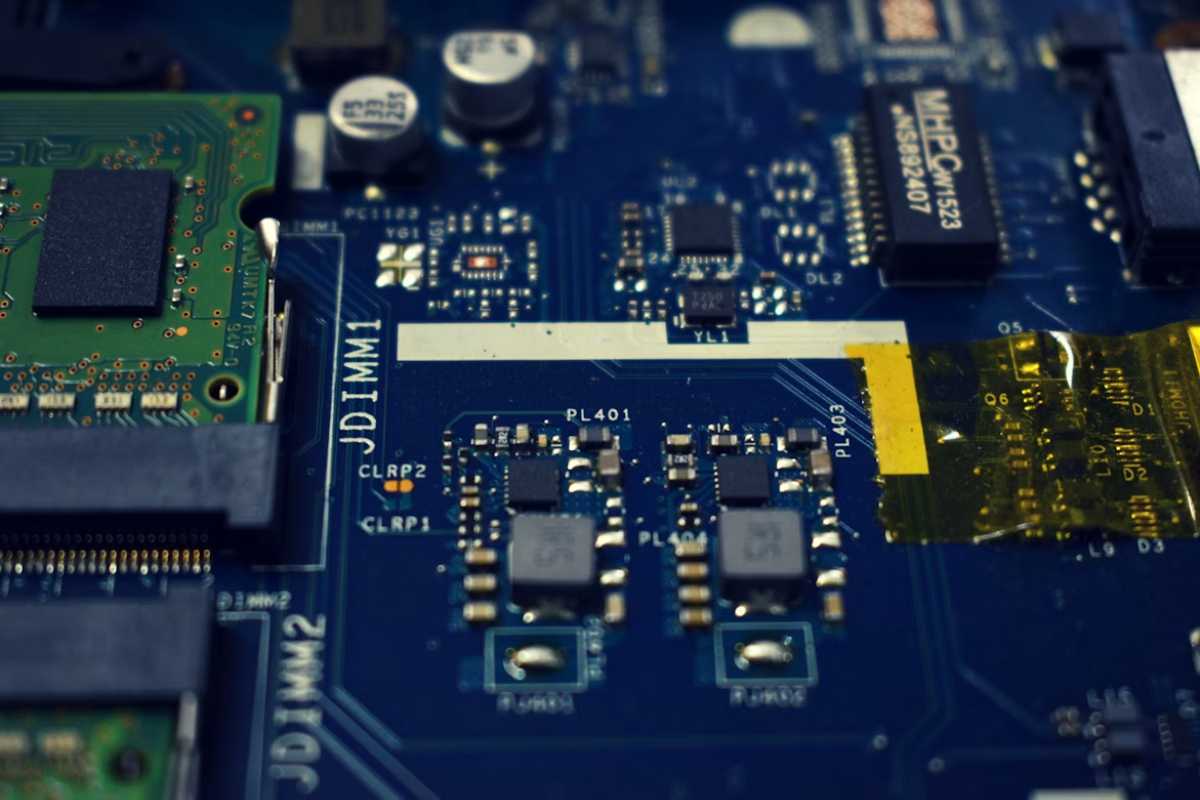
With a name like a motherboard, it’s no surprise that this part plays a vital role in your laptop. Being the central hub, it allows all the other components to communicate, making it the foundation of your entire device. Given its essential role, it’s no surprise that a faulty mother can cause serious problems.
Diagnosing motherboard issues can be complex, as motherboard-related problems can manifest as other issues. Below, we’ll look at some common causes of motherboard issues, walk through troubleshooting steps to diagnose your problem, and offer solutions.
Symptoms of Motherboard Issues
Because your motherboard connects so many parts of your computer, diagnosing problems can be challenging. Your processor, memory, graphics card, hard drive and other peripherals all use the platform to communicate with each other. As a result, the symptoms of a faulty motherboard can mimic those of different problems.
One common symptom is that the laptop won’t turn on, even when closed and fully charged. Sometimes, a computer with a motherboard problem will turn on but won’t fully boot or will repeatedly freeze. Other symptoms include the laptop running slowly, making unusual noises, or malfunctioning components like the keyboard or touchpad.
Causes of Motherboard Failure
There are many causes for motherboard failure, but the most common causes are power surges, overheating, and physical damage. Power outages can occur during lightning storms or when you plug or unplug your laptop from a power source. These sudden power surges can damage the motherboard and extra components, such as the hard drive and memory. High temperatures can also cause severe damage to your laptop’s internal components, including the motherboard. This can happen when dust and debris accumulate inside your computer or when your cooling system is faulty. As with all technology, age is also an issue; motherboard components can degrade and fail over time.
Troubleshooting Motherboard Failure
If you suspect the motherboard is causing your laptop’s problems, a good starting point is to check the power supply and try turning on the computer. You can also run diagnostic tests or check your computer’s event log for error messages pointing to the problem’s source.
Unless you notice a significant fall or tumble, you probably won’t be able to determine physical damage without opening the device. Inside, you can check for any dust or rubble that could be causing overheating and damaging internal components. If you feel comfortable, you can also try resetting the RAM or any loose connections.
If you’ve tried all of the above and still have motherboard issues, it’s usually best to take your device to a computer repair professional. A professional can determine what’s happening and help you choose the best next step.
Diagnosing motherboard issues can be challenging, but the cause determines how to fix the problem. Sometimes, you can replace a damaged capacitor or a burnt-out chip instead of replacing the entire motherboard. If the problem is caused by overheating, you can clean the internal components or add additional cooling to ensure smooth operation.
For expert help with your computer issues, contact your local techs! Find your nearest computer victim to get started.